New Post

Showing posts with label Windows. Show all posts

Windows Tips: How to Accelerate the Performance of Windows XP, Vista, 7, and 8

Written By Nohara Binti Parahita Niya on Friday, August 2, 2013 | 12:03 AM

Windows Tips: How to Accelerate the Performance of Windows XP, Vista, 7, and 8 - Windows is the operating system or better known as the OS that created and developed by a company owned by Bill Gates is Microsoft. Windows is an operating system dipenjuru most desirable parts of the world. Windows made ​​with sistemtis and with superb technology in new era. 

Windows Tips: How to Accelerate the Performance of Windows XP, Vista, 7, and 8

Windows also always making new innovations to make it easier for people to work. Behind the great advantages and benefits, the operating system must have the disadvantage of not only all of the Windows operating system must have the trait. Usually arise when the nature of the damage and the number of elementary files on computer viruses. Examples of weakness due to the occurrence of the damage and the number of elementary files on the computer virus is the length (slow) boot process, the length (slow) turn ( turn on ) the computer or a PC, the length (slow) to open a file, and others. Such damage must be immediately repaired quickly and appropriately so as not to drag the damage that would result in the further degradation of our computer or PC. Many ways that need to be done so that the damage can be overcome in the following way:
  • Defragement
  • Minimalisasir application on startup
  • Remove viruses with antivirus
  • Remove cookies
  • Remove unneeded software, etc.
There is an easier way and efficiently to alleviate or accelerate the performance of the operating system or OS is by using software TuneUp Utilities 2013 . For those of you who have not possessed TuneUp Utilities 2013 please click here to download it. The software is designed to enable us in an effort to accelerate the performance of the operating system or OS. TuneUp Utilities 2013 can only be used for the operating system Windows XP, Vista, 7, and Windows 8 than it is TuneUp Utilities 2013 does not support .

TuneUp Utilities 2013 will tell us what files are damaged and the amount of damage. Not only tell or show the damaged file, TuneUp Utilities 2013 will also improve your home menyetujua these improvements. As a result of our operating system will not slow anymore. You no longer defragment peru, with TuneUp Utilities 2013 will all be resolved and not have to worry because the software is widely used by the general public, especially me.

That's just what I can tell and share with you memgenai article entitled Accelerate the Performance of Windows XP, Vista, 7, and 8 . May be useful for you, especially me personally. Final word I utter, wasalam .

12:03 AM | Read More

How to Enable Show Button Download IDM on Mozilla and Google Chrome

Written By Nohara Binti Parahita Niya on Thursday, August 1, 2013 | 12:00 AM

How to Enable Show Button Download IDM on Mozilla and Google Chrome - Internet Download Manager is software that is very helpful in downloading a file. Effort to satisfy the user IDM IDM IDM also always carried example several times issuing the new version after version of IDM issued verinya certainly accompanied with quality.

How to Enable Show Button Download IDM on Mozilla and Google Chrome

I always had to get a friend who complained that IDMnya TS can not be used or can not get to download a file automatically. Finally I thought, after a few days thinking I have also experienced the same events as friend TS, which can not be used or can not get to download a file automatically. I started tinkering with the browser ( Mozilla Firefox and Google Chrome ), as a result I can download a file with IDM automatically in the browser Mozilla Firefox and Google Chrome . Here I will try to describe the way I have done.

Showing Button Download IDM on Mozilla Fire fox:
  • Download IDM advance if not have, click here , once downloaded and installed . those who already have IDM step is skipped.
  • Open Mozilla Firefox
  • Select Tools => Add -ons
  • Select E​​xtensions
  • Find  IDM CC
  • Click the Enable
  • Completed
Showing Button Download IDM in Google Chrome:
  • Download IDM advance if not have, click here , once downloaded and installed . those who already have IDM step is skipped.
  • Open Google Chrome
  • See the Minimize, Restore Down , and Close . 
  • Click the button below buttons Minimize, Restore Down , and Close (see picture for more details)
  • Select Settings
  • Select Extensions
  • Find IDM Integration
  • Checklist IDM Integration
  • Completed
Se agan corals are able to download all the f ile with IDM automatically. No need to be rkeluh k esal. If there was a time who did DAK can be solved on the technology or software let me know, if I can help then I help you, but if I can not then I will ba ntu as much as I know.
So sa ja I can say about the Displays button on the IDM Download Mozilla and Google Chrome . I hope that this article could help you that sedag difficulty of the problems I mentioned earlier is the paragraph before this. Closed with a final word, wasalam .


12:00 AM | Read More

How to Open Command Prompt With Mouse Click

Written By Nohara Binti Parahita Niya on Saturday, July 20, 2013 | 12:19 PM

How to Open Command Prompt With Mouse Click - I do not care if I spelled outdated, because I just found out how to open CMD with the click of a mouse. If we  to open the Command Promt should RUN (Win + R) then type the command Command.

How to Open Command Prompt With Mouse Click

And here To Open Command Prompt with Mouse Click:

Location of the mouse diarrhea desktop

Hold down the SHIFT key on the keyboard

Press the SHIFT key while right-clicking the Open command windows Click here

Have a computer article about How to Open Command Prompt With Mouse Click beneficial to you
12:19 PM | Read More

Tips Windows: How To Hide Folder in Windows 7 With Command Prompt

How To Hide Folder in Windows 7 With Command Prompt is quite easy. 

 Tips Windows: How To Hide Folder in Windows 7 With Command Prompt

A condition we have a data file that we think are important or privacy and we do not want other users to use your PC to open the file even process them. One option is to hide the solution file so as not affordable by the views of others. Actually, there are various ways that we can do to hide our important files, such as using software Locker file that has been widely circulated on the Internet. But on this occasion I will try to share How to hide important files are pretty simple without using third-party software support by using the Command Prompt application. Your files will not be visible even if you turn on show hidden files. Here's Step:

1. Open the command prompt application. Or press Win + R. Then type cmd. then Enter

After Open a Command Prompt window. Type the disk where the file your secret. eg I will hide the folder named Fathin Disks are located in the "D" >> Songs >> Fathin. I then type D:. Enter. Type cd tracks again. Once the folder named Fathin invisible attributes are now staying put for menghidden. Just type attrib + s + h Fathin.

Example To Hide:

  • D:/> attrib +h  +s D:/folder_name
or
  •  D:/> attrib +h  +s D:/filename
Description of each attribute command can be seen by typing attrib /? .
So a little review about Tricks How to hide Secret Files using CMD. May be useful.
12:01 PM | Read More

How To Format Flash Disk Using Command Prompt

I want Sharing Trick, which certainly had a lot to know, but this time I wanted to post again to a still Knowing this way.

How To Format Flash Disk Using Command Prompt 2
Here are his steps How To Format Flash Disk Using Command Prompt:


Open CMD, by clicking the Start Menu> All Programs> Accessories> Command Prompt.
or by Press "Windows key + R" then typing cmd, and press Enter.
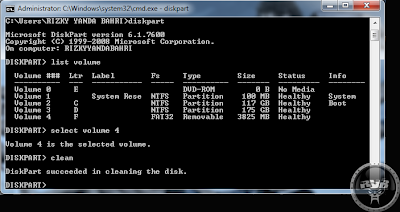
Type the command: diskpart, then enter.
Type another command: list volume, then enter (View in Windows Explorer drive what is in use by your usb)

How To Format Flash Disk Using Command Prompt

For example, your flash is in volume 4, So Please type: select volume 4 and then enter.
Type: clean, then Enter.
Type: create partition primary, and Enter.
Type: select partition 1, press Enter.
type: active, and Enter.
Type format fs = fat32, press Enter. then wait until the Finish Prossesnya (100%)

and the latter if completed 100%, type: assisgn, and press Enter

Completed, to command just type CMD Exit: exit and press Enter.

here's an example if successful:

How To Format Flash Disk Using Command Prompt New
11:43 AM | Read More

Tips You Need to Know in Case Forget Windows 8 Password

Written By Nohara Binti Parahita Niya on Thursday, July 11, 2013 | 9:18 AM

Tips You Need to Know in Case Forget Windows 8 Password

Tips You Need to Know in Case Forget Windows 8 Password, since the release of Windows 8 in last October, the quantity of Windows 8 customers becomes larger and larger. The changes of Windows 8 security password authentication methods help the program attracts may customers. Windows 8 customers can log on with a traditional written text security password, a PIN code as well as a Image Password. At the same time, how to somekeyword also becomes one of the most common and critical problems for Windows 8 customers, especially for those whose techniques contain important data.

 In this passage, I will introduce you three tips if you forget Windows 8 security password. These suggestions are precautionary measures to prevent you from forgetting Windows 8 security password and the last two tips will also be helpful when you have forgotten your Windows 8 security password.

 Tip 1: Make a Good Windows 8 Password Sign

 The security password hint is the additional line of written text you can kind in to remind you of your real security password. Normally, when we forget a security password, what we will do first of all is to check Windows security password clues instead of resetting a new security password. In this feeling, if you forget Windows 8 security password one day, a efficient Windows 8 security password hint is necessary, especially for those who are forgetful. However, your security password can also be a potential danger to Windows 8 program security. It turns out that the security password hint is stored in the computer registry using a very simple encryption. Finding the customer names and security password clues for any customer on a Windows 7/8 pc is not too difficult for a hacker. Therefore, I'd like to emphasis some skills to set a good Windows 8 security password.

 First of all, make sure that the security password hint is something that seems sensible to you but not anyone else. To be brief, ensure that only you can guess the security password when see the hint. Another option is a misleading security password hint like -Mom- but the security password is really your grandma's birthday, rather than information of your mother. Besides, the security password clues shouldn't be a lengthy time. Once your Windows 8 security password is a lengthy time, online hackers may get more chances to totally reset the security password. Also, you can also leave your security password hint in your laptop and keep the laptop well. After all, normally, online hackers are impossible to get your written words in your notebooks. 

Tip 2: Make a Windows 8 Password Reset Hard drive in Enhance
Sometimes, it is inevitable that we have too many thing to keep in mind our Windows 8 security password. Windows 8 security password totally reset disks is widely used when customers forget their Windows 8 security passwords. A premise to use this technique is that you have to develop the security password totally reset disk before the security password gets lost. Assuming that you have created it ahead of time, you can use this technique to totally reset Windows 8 security password without hassle. To produce a Windows 8 security password totally reset disk, you can refer to the following steps.

Phase 1: Place a blank disk into your Windows 8 pc. Phase 2: Press the shortcut key -Win + F- to open the Search web page, and then switch over to Settings. Phase 3: Enter into -User Accounts-. Then simply simply select the -User Accounts- on the left. Phase 4: In the coming web page, tap on the link to -Create a security password totally reset disk- as the below picture. Phase 5: Select the right USB and simply just click -next-. You will then be asked to input the current customer security password. Now, you've finished creating a totally reset disk. Please do make sure to keep it in a secure home since anyone could use it to get accessibility log in your Windows 8 pc easily.

Once you forget your Windows 8 security password, you can insert the disk and then kind in your new security password and a new security password clues after the Password Reset Wizard appears, and you will be able to get accessibility your Windows 8 pc with the new security password successfully in a few minutes. But a security password totally reset disk can only be used to totally reset the security password of a specific customer consideration, and it doesn't work on other records available on your pc.

 Tip 3: Understand about Windows 8 Password Reset resources

In case you forget your Windows 8 security password one day, it is useful for you to find out about some resources used to totally reset Windows 8 security passwords. In general, there are two kinds of Windows 8 security password totally reset tools: totally free or professional program.

As to totally free Windows 8 security password totally reset resources, a lot of totally free software application can come in handy. For example, Opchcrack, which is supposed to be the best totally free software application to totally reset Windows security password with rainbow table, though the size of its Live CD ISO image is 496MB. Also, there are others, such as John the Ripper, Offline NT Password & Registry Editor and so on.

For professional programs, you can also find a variety of software on the Internet. They are relatively more practical and versatile than totally free software application. What's more, some of them are easy to use, such as Anmosoft Windows Password Reset. To choose a efficient Windows 8 security password tool, you should first of all consider whether it is secure. Then, whether it is compatible to other techniques if you're using dual-system, say, consider if it can be used to somekeyword if you have a Windows 8 and Windows XP double program. Thirdly, take the price, recovery speed and customer services into records.

 
9:18 AM | Read More