New Post

Showing posts with label Command Prompt. Show all posts

Tips: Command DOS (Disk Operating System) - Command Line

Written By Nohara Binti Parahita Niya on Saturday, August 3, 2013 | 1:37 PM

Command DOS (Disk Operating System) - Command Line.

Command DOS (Disk Operating System) - Command Line

  •     APPEND : Causes MS-DOS to look in other directories when editing a file or running a command.
  •     ARP : Displays, adds, and removes arp information from network devices
  •     ASSIGN : Assign a drive letter to an alternate letter
  •     ASSOC : View the file associations
  •     AT : Schedule a time to execute commands or programs.
  •     ATMADM : Lists connections and addresses seen by Windows ATM call manager.
  •     ATTRIB : Display and change file attributes.
  •     BATCH : NRecovery console command that executes a series of commands in a file.
  •     BOOTCFG : Recovery console command that allows a user to view, modify, & rebuild the boot.ini
  •     BREAK : Enable / disable CTRL + C feature.
  •     CACLS : View and modify file ACL's.
  •     CALL : Calls a batch file from another batch file.
  •     CD : Changes directories.
  •     CHCP : Supplement the International keyboard and character set information.
  •     CHDIR Changes directories.
  •     CHKDSK : Check the hard disk drive running FAT for errors.
  •     CHKNTFS : Check the hard disk drive running NTFS for errors.
  •     CHOICE : Specify a listing of multiple options within a batch file.
  •     CLS : Clears the screen.
  •     CMD : Opens the command interpreter.
  •     COLOR : Easily change the foreground and background color of the
  •     MS-DOS window.
  •     COMP : Compares files.
  •     COMPACT : Compresses and uncompress files.
  •     CONTROL : Open control panel icons from the MS-DOS prompt.
  •     CONVERT : Convert FAT to NTFS.
  •     COPY : Copy one or more files to an alternate location.
  •     CTTY : Change the computers input/output devices.
  •     DATE : View or change the systems date.
  •     DEBUG : Debug utility to create assembly programs to modify hardware settings.
  •     DEFRAG : Re-arrange the hard disk drive to help with loading programs.
  •     DEL : Deletes one or more files.
  •     DELETE : Recovery console command that deletes a file.
  •     DELTREE : Deletes one or more files and/or directories.
  •     DIR : List the contents of one or more directory.
  •     DISABLE : Recovery console command that disables Windows system services or drivers.
  •     DISKCOMP : Compare a disk with another disk.
  •     DISKCOPY : Copy the contents of one disk
  •     DOSKEY : Command to view and execute commands that have been run in the past.
  •     DOSSHELL : A GUI to help with early MS-DOS users.
  •     DRIVPARM : Enables overwrite of original device drivers.
  •     ECHO : Displays messages and enables and disables echo.
  •     EDIT : View and edit files.
  •     EDLIN : View and edit files.
  •     EMM386 : Load extended Memory Manager.
  •     ENABLE : Recovery console command to enable a disable service or driver.
  •     ENDLOCAL : Stops the localization of the environment changes enabled by the setlocal command.
  •     ERASE : Erase files
  •     EXPAND : Expand a Microsoft Windows file back to it's original format.
  •     EXIT : Exit from the command interpreter.
  •     EXTRACT : Extract files from the Microsoft Windows cabinets.
  •     FASTHELP : Displays a listing of MS-DOS commands and information about them
  •     FC : Compare files.
  •     FDISK : Create the partitions on the hard disk drive.
  •     FIND : Search for text within a file.
  •     FINDSTR : Searches for a string of text within a file.
  •     FIXBOOT : Writes a new boot sector.
  •     FIXMBR : Writes a new boot record to a disk drive.
  •     FOR : Boolean used in batch files.
  •     FORMAT : Command to erase and prepare a disk drive.
  •     FTP : Command to connect and operate on a FTP server.
  •     FTYPE : Displays or modifies file types used in file extensio asociations.
  •     GOTO : Moves a batch file to a specific label or location.
  •     GRAFTABL : Show extended characters in graphics mode.
  •     HELP : Display a listing of commands and brief explanation.
  •     IF : Allows for batch files to perform conditional processing.
  •     IFSHLP.SYS : 32-bit file manager.
  •     IPCONFIG : Network command to view network adapter settings and assigned values.
  •     KEYB : Change layout of keyboard.
  •     LABEL : Change the label of a disk drive.
  •     LH : Load a device driver in to high memory.
  •     LISTSVC : Recovery console command that displays the services and drivers.
  •     LOADFIX : Load a program above the first 64k.
  •     LOADHIGH : Load a device driver in to high memory.
  •     LOCK : Lock the hard disk drive.
  •     LOGON : Recovery console command to list installations and enable administrator login.
  •     MAP : Displays the device name of a drive.
  •     MD : Command to create a new directory.
  •     MEM : Display memory on system.
  •     MKDIR : Command to create a new directory.
  •     MODE : Modify the port or display settings.
  •     MORE : Display one page at a time.
  •     MOVE : Move one or more files from one directory to another DIRECTORY
  •     MSAV : Early Microsoft Virus scanner.
  •     MSD : Diagnostics utility.
  •     MSCDEX : Utility used to load and provide access to the CD-ROM.
  •     NBTSTAT : Displays protocol statistics and current TCP/IP connections using NBT
  •     NET : Update, fix, or view the network or network settings
  •     NETSH : Configure dynamic and static network information from MS-DOS.
  •     NETSTAT : Display the TCP/IP network protocol statistics and information.
  •     NLSFUNC : Load country specific information.
  •     NSLOOKUP : Look up an IP address of a domain or host on a network.
  •     PATH : View and modify the computers path location
  •     PATHPING : View and locate locations of network latency
  •     PAUSE : command used in batch files to stop the processing of a command.
  •     PING : Test / send information to another network computer or network device .
  •     POPD : Changes to the directory or network path stored by the pushd command.
  •     POWER : Conserve power with computer portables.
  •     PRINT : Prints data to a printer port.
  •     PROMPT : View and change the MS-DOS prompt.
  •     PUSHD : Stores a directory or network path in memory so it can be returned to at any time.
  •     QBASIC : Open the QBasic.
  •     RD : Removes an empty directory.
  •     REN : Renames a file or directory.
  •     RENAME : Renames a file or directory.
  •     RMDIR : Removes an empty directory.
  •     ROUTE : View and configure windows network route tables.
  •     RUNAS : Enables a user to execute a program on another
  •     computer.
  •     SCANDISK : Run the scandisk utility.
  •     SCANREG : Scan registry and recover registry from errors.
  •     SET : Change one variable or string to another.
  •     SETLOCAL : Enables local environments to be changed without affecting anything else.
  •     SHARE : Installs support for file sharing and locking capabilities.
  •     SETVER : Change MS-DOS version to trick older MS-DOS programs.
  •     SHIFT : Changes the position of replaceable parameters in a batch program.
  •     SHUTDOWN : Shutdown the computer from the MS-DOS prompt.
  •     SMARTDRV : Create a disk cache in conventional memory or extended memory.
  •     SORT : Sorts the input and displays the output to the screen.
  •     START : Start a separate window in Windows from the MS-DOS prompt.
  •     SUBST : Substitute a folder on your computer for another drive letter.
  •     SWITCHES : Remove add functions from MS-DOS.
  •     SYS : Transfer system files to disk drive.
  •     TELNET : Telnet to another computer / device from the prompt.
  •     TIME : View or modify the system time.
  •     TITLE : Change the title of their MS-DOS window.
  •     TRACERT : Visually view a network packets route across a network.
  •     TREE : View a visual tree of the hard disk drive.
  •     TYPE : Display the contents of a file.
  •     UNDELETE : Undelete a file that has been deleted.
  •     UNFORMAT : Unformat a hard disk drive.
  •     UNLOCK : Unlock a disk drive.
  •     VER : Display the version information.
  •     VERIFY : Enables or disables the feature to determine if files have been written properly.
  •     VOL : Displays the volume information about the designated drive.
  •     XCOPY : Copy multiple files, directories, and/or drives from one location to another.
  •     TRUENAME : When placed before a file, will display the whole directory in which it exists
  •     TASKKILL : It allows you to kill those unneeded or locked up applications

1:37 PM | Read More

Learning Basic Linux Commands - Command Line Interface For Linux

Written By Nohara Binti Parahita Niya on Saturday, July 27, 2013 | 6:36 PM

Learning Basic Linux Commands - Command Line Interface For Linux - The commands in the Linux operating system is case sensitive, use the command distinguishes between uppercase (capital) and lowercase letters. It means writing the command 'ls' with 'LS' or 'ls' or 'ls' will be interpreted as a different command.

Learning Basic Linux Commands - Command Line Interface For Linux

In the Unix operating system under a lot of combinations of commands that can be combined in a single command in the command means may consist of a few basic commands. If we trouble or confusion because many combinations of commands, options, or syntax is used, we can see his howto, readme, or on its manual page. Example, if we want to know what are the syntax-syntax that can be used in the command 'ls', we simply typing 'man ls' or 'ls-help' then it will be shown all the information about the command 'ls' from the option-optionnya, syntax writing. The following are some of the commands in the operating system under Linux and Unix in particular comparing it with the existing command in DOS (Disk Operating System).

1. man <command> man or <command>-help
function: to see the manual pages of a command (help)
man ls: see the manual page for the ls command
DOS: <command> /? or help <command>
dir /?

2. ls <option>
function: to see the contents of a directory, for example:
ls-l: to see the file or directory on the active directory to include attributes
ls-la / etc: to see the files or directories in the / etc directory and its file hiddennya
DOS: dir
dir \ windows: to see the file or directory in the windows directory
Note: the operating system under Unix using the '/' to separate the parent directory to child directory, while in DOS using the '\'

3. cd <option> <directory>
function: to change directory (change directory), for example:
cd / home / amikom: to move to the directory / home / amikom
cd .. : To move to the parent directory of the current directory (the parent directory).
DOS: cd
          Syntax is almost the same
Note: use 'cd' without the name of the directory will be heading to the home directory, whereas the use of 'cd' will go to the previous Active Directory.

4. mkdir <name_direktory>
function: to create a new directory
mkdir amikom: to create a new directory with the name of the current directory amikom
DOS: md <name_direktory>
Syntax is almost the same
Note: use spaces in the directory name will be assumed as a new directory name.

5. rmdir <name_direktory>
function: to remove the empty directory
rmdir car: to delete the directory with the name car
DOS: rd <name_direktory>
Syntax is almost the same
Note: to delete the directory is meant to be completely empty

6. cp <target> <destination>
function: to copy the file or directory
so_ti cp / home: so_ti copy files to the directory / home
try cp / home / copies: if the home directory is not a directory copy, then try to be copied files in the home directory as well be renamed with the name of the copy
DOS: copy
          Syntax is almost the same

7. mv <target> <destination>
function: to move a file or directory and rename it or
mv / home / so / etc: move a file or directory so didirektori / home to the / etc directory with the name so
mv amrik AMERIKA: change (rename) files amrik be AMERIKA on active directory
DOS: move
Note: the DOS to rename the file can use the 'rename' or 'ren'

8. rm <file>
function: to delete file
dataku rm: delete my data files in the current directory
DOS: del or erase
          same syntax

9. pwd
function: to determine the path the current directory (print working directory)
DOS: - (none)

10. paint <name_file>
function: to see the contents of the file or create a file
amikom paint: take a look at amikom
cat> Data: create a new file with the name of the data (to end use ^ D (Ctrl + D)) * see a combination of injunction
DOS: type or copy con
          to create a new file in the same DOS 'copy con' while the 'type' only to see the contents of the file

11. find <option>
function: to find the file / directory
find /-name data.txt-print: search directories throughout the data.txt file and display it on a layer
DOS: -
Note: to search for files or directories in a specified directory eg / home after the 'find' followed by the directory name eg 'find / home-name ...'

12. <name_file> pico or vi <name_file>
functions: file editor / text editor.
pico amerika.txt: edit file amerika.txt
DOS: edit <name_file>
Note: if the file name does not exist then it will be considered as a new file (created as a file with that name.

13. who or w
function: to see the current user
DOS: -

14. ps <option> * see management process
function to see what's going on / being executed by the system
DOS: -

15. <signal> kill <pid>
functionality to suspend or shut down existing processes
-9253 kill: to stop the process with PID number 253
DOS: -
Note: for <signal> can use the signal numbers can also use the signal names

16. more <name_file>
function: to see the contents of the file and see the output on the screen, when in one screen is not enough then it will be displayed perlayar
dos: more
ket: more when combined with other commands using the pipeline output of the first command will be displayed perlayar if its output does not fill the screen) * look at the combination of injunction.

17. clear
function: to clean the screen of the display text
DOS: cls

18. reboot or CTRL + ALT + DEL
function: to re-boot the computer (restart)
DOS: -

19. <option> halt or shutdown or init 0
function: to turn off or shutdown the computer
DOS: -
Note: for the command prompt on Windows XP can use the shutdown
6:36 PM | Read More

The command "Command Prompt" which should be known

Written By Nohara Binti Parahita Niya on Monday, April 22, 2013 | 12:05 AM


Command Prompt for some computer users probably are not used anymore. Maybe even some new computer users never know what the command prompt. Although rarely used, but until Windows 7, Command Prompt still included, this indicates that this feature is still very important.
Command prompt commands provided start windws 9x to Windows 7 was only increasing, ranging from simple to complex commands for administrators to address and analyze a variety of problems. Here are some basic command prompt commands that we should know as it is quite useful.
To run the command prompt, get through the start menu (All Programs)> Accessories then select Command Prompt. In addition it could be a faster way through the menu on the start menu RUN type CMD and press enter.
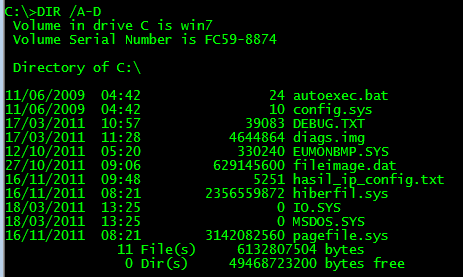
DIR

This command to display a list of files and directories in the current folder location in access at the command prompt. To display hidden files and folders, or add the parameter / A after the DIR command. Make sure there is a space before the slash, eg
DIR / A

To determine the parameters or other options, please type DIR /?
CD or chdir

This command is useful for moving directory. CD and chdir has almost the same features, except for the cd we can write the location of the folder or file that is its space without quotes two. Here are some examples of commands and functions:
CD D: to switch to drive D:
CD .. to move to the directory above
CD \ or CD / to move to the root directory (for Windows 7/Vista). For example, in the command prompt we exist in C: \ Users \ I>, to move to the C:, we can write the CD .. 2 times. More brevity we can write the CD /
In addition to such uses, we can also use the autocomplete feature file or folder name. After typing in the CD then follow certain spaces and letters, we can press the Tab key (can be used many times) to get the auto complete feature folder name or file.
IPCONFIG

Very beneficial in terms of internet connection or network. By typing ipconfig then press enter, it will display the IP address of our computer with some additional information such as Gateway, subnet mask, and others. For more complete information we can type IPCONFIG / ALL.
Additional / ALL is an options or parameters. Addition / ALL, there are several other parameters that quite useful. For a list of more parameters, please type ipconfig /?
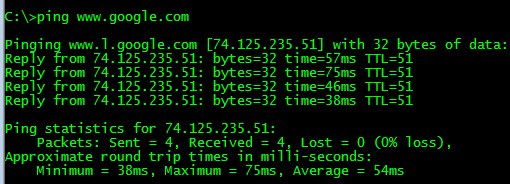
PING

Often when the internet or network can not be connected. To test your network or Internet connection, we can use the PING command and follow the website name or IP address of the destination. For example as follows:
PING www.google.com
PING 74.125.235.51

If the results are Reply from ...., then the network or internet connection can be said OK, but if the display appears Request time out, there are several possibilities, such as no connection, cable or network problems or the address does not exist or can not be found and others.

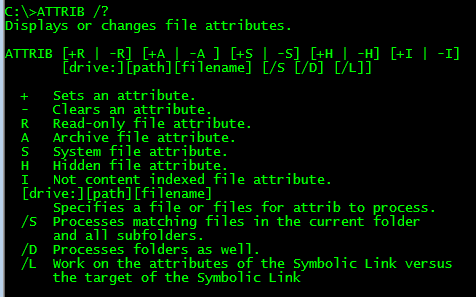
Attrib

Viruses or worms that attack computer usually hide files or folders on your computer or flash. If this is the case, we can use the attrib command to display the file (including to hide the files). The following command will list all files and folders in the folder that is being accessed at the command prompt.
Attrib *. *-S-H-R / S / D

More information is either this command or display the hidden files, please read my previous writing hidden Files and Folders Virus?. Or if you want more easily, just use a small program (no need to install) I ever made, Hidden File Tool.
Some Additional Tips

All command prompt commands usually include many parameters that can be used. To find out what parameters are available, add a space and /? after the command you want to know. for example attrib /?, PING /?. Each added parameter, before a slash (/) do not forget to leave a space.
If we want results we write commands can be saved in text, each end of the command we can add the ">" and follow the file name. For example, the following command:
Ipconfig / all> D: \ hasil_cmd_config.txt
Then the result will not appear in the command prompt, but saved in the file "hasil_in_config.txt" in drive D:. If the folder or file name contains spaces, then we must give two quotes at the beginning and the end. For example as follows:
Ipconfig / all> "D: \ cmd results config.txt"
To clean the display screen, use the CLS command. When finished, click the button to exit than X corner, we could also type the command EXIT. If we want to look different and refreshing, we can replace easily. Please read my previous posts Beautify display the Command Prompt
Hopefully some command prompt commands above could be useful. To command the command prompt to see more follow the link AZ Command Prompt windows XP or AZ command prompt Win Vista / 7
12:05 AM | Read More