New Post

Showing posts with label DropBox. Show all posts

HOW TO UPLOAD FILE USING DropBox

Written By Nohara Binti Parahita Niya on Monday, June 24, 2013 | 11:08 AM


This tutorial we will discuss how to upload files using dropbox. Maybe some of you already know what it is about dropbox. Well, for the uninitiated let's talk about this dropbox. before we discuss about dropbox further, you can see the site here.

What is dropbox?


"Dropbox is a free service that lets you bring your photos, docs, and videos anywhere and share them easily. Never email yourself a file again!"

Dropbox is a cloud computing application that is used to store, access and share documents anytime anywhere by syncing folders on your computer with a folder in your Dropbox account (provided there is an internet connection of course). With dropbox account you will have to get the storage media in a free 2GB internet. This equates to an average of 500 high quality MP3 songs, or 2000 more Word documents in general, or 2000 more documents PDF files.
The point is you can upload files with any format to be shared. And a link to download the file itself is not diverted to other links such as file storage site 4shared, ziddu, mediafire, etc. .. or also called direct download

Then, what is the advantage of using Dropbox as a storage medium?
advantages are:

1. Available public and private share share

2. Can directly upload files from your computer by dragging the file to be shared or saved to storage provided by Dropbox without having to log in via the dropbox website, of course you must first mengistall applications provided by dropbox.


3. Support all file formats, CDR Either that, avi, mkv, wmv, Ai, RAR, ZIP, 7ZIP, PSD, or other.

4. Can upload files via email

5. Download files directly (direct link), it means you are not redirected to another link when downloading files:

   
6. File security is assured, all your files are stored safely since all data transfer is done over SSL and encrypted with AES-256 method. Simply put, the level of safety equivalent to data security dropbox online stores, banking and military hard burglarized hackers.

And there are many more advantages provided dropbox, I suggest you to use this as a dropbox online storage ... If you are interested you can directly register here. And for the way the list and use Dropbox can see more here.
11:08 AM | Read More

How to Use DropBox on Android

Written By Nohara Binti Parahita Niya on Wednesday, April 24, 2013 | 9:03 PM


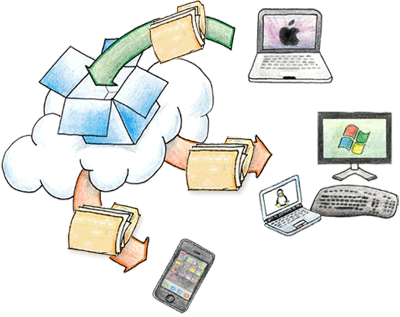
Currently the system is more trendy "Cloud Storage", what is it? if interpreted "Cloud Storage" lah, where maybe we can save in the clouds ;). segitunya not time, it's just the term alone, the cloud system we can store on the server that is on the internet sono, so we could have took this / use, add or change a file that we have where we are. such as cloud philosophy has always been and always above the same spot even if we are different. rather difficult anyway for an explanation, but I think you already understand my intention, to clarify please see the following picture so that you understand what is Cloud System.


Cloud Storage System
And also Picture Here (DropBox)


DropBox Cloud
Well, to meet human needs which are very high mobility rate then many emerging provider of cloud storage system. One is DropBox, dropbox service is long operation but with the trend gadget / smartphone DropBox increasingly in gandrungi Smartphone owners / Gadget. One of the benefits we can DropBox sinkronasikan with many different types of devices, anywhere and anytime, such as Computers with Windows operating systems, Linux, and Mac (Apple) and not to forget also available in smartphone devices such as Android, iPhone, and BlackBerry.

But this time I will only discuss for the use of the Android operating system, in fact yesterday also been discussed about dropbox in my previous post you can read DropBox, File Storage Online.

Installation

Immediately Okay, How dropbox Installation is easy, simply use the first time you install the application on Google Play Store: Here. Once completed please open the DropBox app on your android. it will be greeted with a screen similar to the image below:


Click Start, then we will be asked whether what DropBox already have an account yet, when I select the "I'm Already a DropBox User" and enter the email and password you a dropbox account. if not? take it easy, I will guide you to the list via handphone android dropbox / other smartphones.


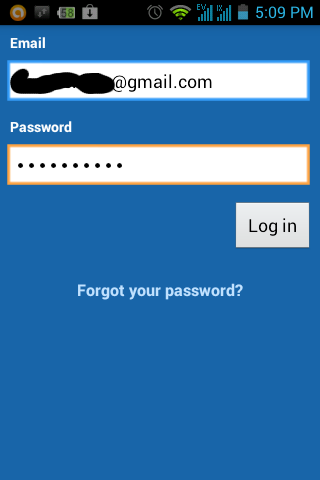
Login DropBox

Dropbox login, If you have the previous list
How to Register Dropbox

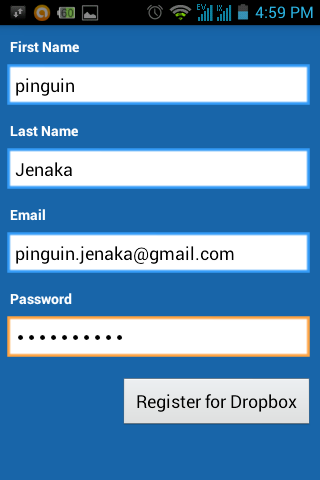
Up dropbox via mobile phone / smartphone is easy, we simply enter your email address and new password to sign in dropbox as shown below.


Registering Dropbox
after making sure the data you actually press the button "Register for Dropbox" then you will be asked the following


Register Dropbox
Click "I Agree" to continue and view terms to see the terms of use dropbox. To get the deposit bonus simply follow these steps 500Mb


Click Next To Continue

Dropbox
Well, to get a free 500MB Please click turn on, but if not please click skip it. Okay, we're ready to use dropbox


Dropbox
We can save our files to the dropbox server / upload and retrieve files that could also have stored on Dropbox servers / Download via devices we've Linked with our dropbox account.


Dropbox


How to Upload and Download on Dropbox

How to upload is not too difficult really, surely you can do it yourself without my help, but all deh, bear if not in included as well. on the dropbox icon there are 3 icon menu, now select the middle or picture folders that exist arrows onto it.


Upload Dropbox
Well, please select the files that would be uploaded, types of photos / videos please press the "Photos or Videos" or other file types please select "Other files" and then select the file on purpose.


Upload to Dropbox
Then click "Upload", after the process is completed the file you've been in the cloud (not the actual cloud you know) or in the dropbox server. if for download as we open the file manager and just click on it, then you mean the file will be downloaded automatically and instantly be in the open.

Not easy enough, the actual pace a little, but maybe because my explanation is somewhat mbriwet / acakadut tulisanya so long trains like Madison Jaya, ahhaha. ya have it, I'm going home first, already Malem ya from wkwkkw not come home this morning.

Last searches:

how to use dropbox in android, how to use dropbox, how to use dropbox android, INTENT dropbox, dropbox in android, how to use dropbox on android, android is dropbox, dropbox for android, how to use the drop box, use dropbox,
9:03 PM | Read More

How to Use and Install Dropbox Dropbox on Computer


Dropbox is a cloud service for storing various files. How to use dropbox is not difficult, we can use dropbox service for free.

Each file will be automatically linked to the connected computer, mobile phone, or other device that uses dropbox app.

Simply this, with dropbox, we can store files that you created dikomputer office without having to take it through the flash to your home computer or vice versa.

Each file that we save in Dropbox, the file is automatically spread to computers / gadgets that use the same dropbox account or already synchronized. The first requirement to start you must have a dropbox account first.


How to Use Dropbox

Before we start using dropbox, I will show you step by step how to install dropbox on windows.

Once we register dropbox, then we have to download the dropbox app. Download dropbox, after that we will begin to install.


Register Dropbox
Select the \"I already have Dropbox account\", we\'ve signed up before. Then log in with the account you created earlier.


Install Dropbox
Install Dropbox as you install most programs, dropbox save in C:, or select \"Typical, dropbox setup with normal setting\".


Select Storage
Dropbox provides free storage only 2GB, but you can add to upgrade premises.

My advice is 2GB maximize first, then after that you just upgraded. However, if the upgrade is not the best option, you could try dropbox alternative that provides greater space.

Dropbox Alternative 5 Best Free Cloud Storage

How to Use Dropbox Dropbox and Setting

After successfully installing Dropbox, we can add a folder and share it with our friends without having to copy and paste the link.

All we do is to invite friends that we want to invite to our folder, and the file that we save in the folder on the computer will automatically friends who we invite. With the terms you use Dropbox and friends online.

How to share a folder, log into the Dropbox website. Then you we created a folder in there, then the folder will automatically be there on your computer that is syncing application Dropbox.


How to Use Dropbox 1
Right-click that folder there will be several options, select the Shared folder options. Enter the email Dropbox our friend, so we agreed that our friends are synchronized with our friends.


How to Use Dropbox 2
So how to share files without having to share a folder or copy and paste the link, such as mediafire?

Remarkably Dropbox can do it without us having to login to the website, uploading, and copying and links. And the people who are downloading can download it directly (direct).

The trick, we just put our files in the Public folder. Then we right-click the saved file and choose Dropbox> Copy public link.

In addition to sharing features, dropbox can also be used for static websites menghost.

How to Host a Website on Cloud with Dropbox
By storing our files on Dropbox, we do not have to worry anymore if our hard drives suddenly broken. Dropbox warrant that files stored there will remain safe. What I liked best, dropbox provides an undo facility to cope when you save the file which was accidentally deleted.
8:53 PM | Read More